Protecting Your Digital Legacy
A practical collection of resources, guides, and tools to help you prepare for digital legacy challenges before they become emergencies.
It's time to help your loved ones...
Don’t put your executor or authorized decision-makers through the frustration of not being able to access critical online assets in an unexpected situation.
This resource page supports anyone preparing dealing with digital legacy challenges, whether you are just starting to think about estate planning, or have been worrying for some time about what will happen to your accounts and digital assets after you die.
Check out the resources on this page to learn more about why “digital legacy planning” means more than just having a list of passwords you assume your loved ones will find, and get some quick tips that will simplify the process of granting access to major platforms like Apple, Google and Microsoft.
An even better way to keep your momentum going, and to stay plugged into my tools and tips is to sign up for my newsletter updates. Just fill in the form on the right, and you’ll receive my regular news with practical insights…

Start Here: 5 Top Actions Everyone Should Take
- Make a list of your most important online accounts (with no passwords or sensitive information) in a paper document, or an electronic document that you can print out
- Put your organized list in a safe location (preferably locked) in your home
- Use a password manager, if possible, to store passwords securely, and make sure the entries correspond to your listed items above; and turn on two-factor authentication for the master password access
- Assign a trusted contact for your digital affairs, and give them directions on where to find your organized list, and if appropriate, use the sharing or emergency access features in your password manager
- Enable platform-specific legacy or emergency access for the online services you use (e.g. Apple, Gmail, Facebook, etc.)
- Make sure your trusted contact(s) has a way to easily obtain your mobile phone’s PIN, so they can access it for two-factor authentication in an emergency
- Keep your list and your password repository up to date. Also, review who your trusted contact(s) is, and that they know where your document is.
Digital Asset Inventory
Finding your most important digital assets
One of the hardest parts of creating a Digital Legacy File that your loved ones can use is simply remembering everything you have. Most people can easily think of their main email account, bank account, or mobile phone. But what about old email accounts, loyalty programs, cloud photo storage, password notebooks, USB drives, or important document folders? These types of assets are easy to forget, but they can be very important for you or your loved ones during an emergency.
The Digital Asset Discovery Inventory Listing is designed to help you remember and identify information assets you may have overlooked. It contains a large list of categories and examples to help you think about the accounts, devices, records, documents, memberships, and other information that make up your digital life. You do not need to document everything on the list. Instead, use it as a guide to help you spot assets that are important to you.
The inventory works best when used together with the other resources on this page. First, use the inventory to identify important assets. Then use the Asset Record Templates to document them, organize them in your Digital Legacy File, and create a Digital Trailhead so the people you trust can find the information they need when it matters most.
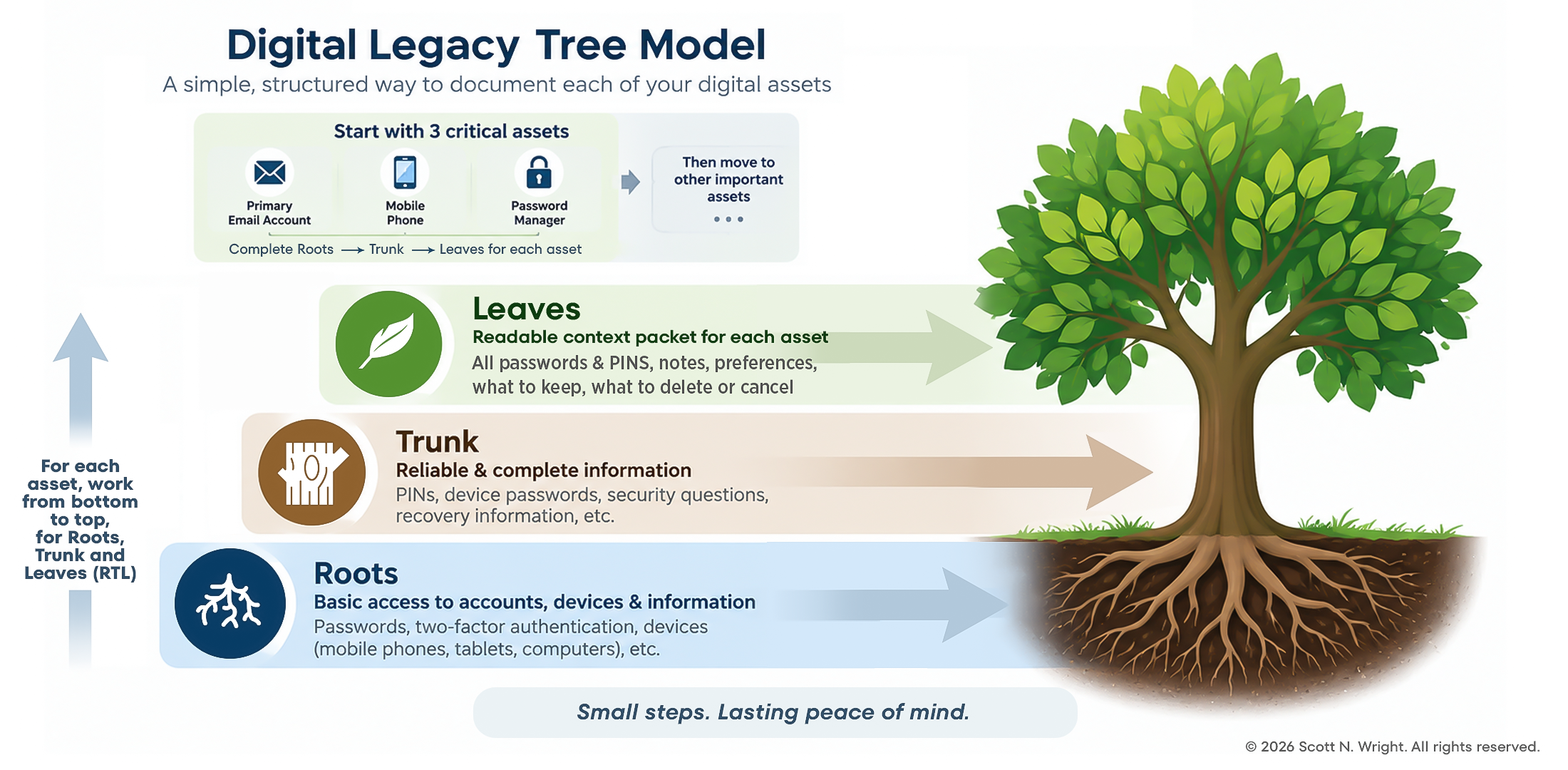
NOTE: This sounds like a lot of complicated work. It can be significant when you have a lot of online accounts, but there is a way to do break it into smaller, manageable activities. That’s the advantage of using the Digital Legacy Tree framework.
📄 Download the Digital Asset Discovery Inventory Listing (HERE)
Tip: Don’t try to document everything at once. Start with the assets that would cause the biggest problems if nobody knew they existed.
Platform Legacy Settings
Setting up digital legacy or emergency contacts with major online platforms
Note that some of the platforms below do not have specific mechanisms for designating a legacy or emergency contact. In those cases, it is vital that your password is saved and that any two-factor authentication devices are also accessible by your trusted contact.
🍎 Apple (Digital Legacy / iCloud)
Quick tip:
- Add a Legacy Contact in your Apple ID settings
- Your contact needs an access key + death certificate to request data [support.apple.com]
🔍 Google (Gmail, Drive, Photos, YouTube)
Quick tip:
- Set inactivity period (3–18 months or more)
- Add trusted contacts and choose what data they receive [simplymac.com]
- Optionally auto-delete your account
- 👉 (Use in-page help link or search: “Facebook legacy contact settings”)
Quick tip:
- Choose a Legacy Contact to manage your memorialized account
- They can post updates, manage tributes, and update profile settings
- They cannot log in or read private messages [support.google.com]
Quick tip:
- No true “legacy login” feature
- Accounts can be memorialized or deleted upon request
- Requires proof of death (e.g., obituary) [betterlegacy.io]
💼 Microsoft (Outlook, OneDrive, etc.)
Quick tip:
- No pre-configured legacy access
- Access may require legal process (e.g., court order/subpoena) [androidpolice.com]
- Plan ahead—don’t rely on recovery later
🛒 Amazon (and similar services)
- 👉 Amazon Help (search: “close account of deceased user”)
Quick tip:
- No legacy feature
- Executors must contact support and provide documentation
Password Manager Primer: Setting up the Bitwarden Password Manager program
A password manager helps you create, store, and safely access strong passwords for all your accounts—so you don’t have to remember them. Security professionals recommend using a password manager program when you have multiple online accounts, so that each account can be secured with a different, unique and strong password, as long as you use a long, strong master password that is not guessable or easy for an attacker to find.
While I describe the process for setting up the Bitwarden password manager below, I do not have any affiliation with Bitwarden. I use it myself, and am familiar with its features. You may prefer using others such as Dashlane, 1Password, KeyPass or LastPass. I am not claiming that any of these products is “the most secure” way to store passwords. But they are used by many people, which means that there is a lot of scrutiny on their security practices. This doesn’t mean they will never suffer security incidents. However, the risks of not using a password manager (e.g. using the same password that you can remember everywhere) are generally considered to be greater than those of using a reputable one, along with good security best practices. For the purposes of reducing risks from your loved ones not being able to access your online accounts when you die, and to make it relatively easy for you to document your “digital legacy”, this is what I recommend.
Follow these steps to get set up with Bitwarden, one of the most common and reputable password managers. It has a free plan that anyone can subscribe to. You may wish to shop around and use a different password manager program. However, these instructions can be used as a general procedure for setting up any password manager program.
You may also want to reference the series of Bitwarden 101 videos on YouTube to see demonstrations for some of the basic steps below.
1. Create Your Bitwarden Account
- Go to: https://bitwarden.com
- Click Get Started or Create Account
- Enter your email address
- Create a strong master password (see tips below)
- Write down a password hint (optional but helpful)
✅ Important: Your master password is the *only password you need to remember—and it cannot be recovered if lost.
2. Create a Strong Master Password
Use something that is:
- Long (at least 12–16 characters)
- Easy for you to remember, hard for others to guess
✅ Example approach:
- Combine random words:
Maple Bridge Ocean Coffee!(only an example; use your own words)
❌ Avoid:
- Personal info (birthdays, names)
- Reusing any existing password
💡 Consider writing your master password down and storing it in a secure physical location (like a safe), as described in the book The Digital Legacy Tree: Ensuring your loved ones have access to what they need when you’re gone.
3. Install Bitwarden on Your Devices
To make it easy to use daily:
- On your computer: install the browser extension (Chrome, Edge, Firefox, etc.)
- On your phone: install the Bitwarden app from the App Store or Google Play
- Log in with your email and master password
- You’re now ready to start saving passwords
4. Save Your First Password
The next time you log in to a website:
- Enter your username and password as usual
- Bitwarden will prompt: “Save this login?”
- Click Yes
✅ That’s it—Bitwarden will remember it for you
5. Use Bitwarden to Log In
Next time you visit that site and see the fields for entering your username and password on the login page:
- Click the Bitwarden icon in your browser
- Choose the saved login
- Click the Fill link in the record that pops up
✅ No more typing or remembering passwords
6. Improve Existing Passwords (One at a Time)
Start upgrading your security gradually:
- Visit an important account (email, bank, etc.)
- Change the password
- Use Bitwarden’s password generator to create a strong one (it will be a long, random string of characters)
- Save it when prompted
✅ Focus on your most important accounts first
7. Turn On Two-Factor Authentication, also called 2FA, MFA or two-step login (Optional but Recommended)
This adds an extra layer of protection:
- In Bitwarden, go to Settings → Security → Two-step login
- Follow the steps to link an authenticator app or email code
✅ Even if someone gets your password, they would need to also have the code provided on your device
8. Back Up Your Bitwarden access information (Very Important)
Make sure someone you trust can access your digital life if needed:
- Write down:
- Your Bitwarden email
- Where your master password is stored (not the password itself)
- Keep this with your important documents
💡 This step supports your Digital Legacy Tree planning process
9. Save Your Emergency Backup Codes (Critical if you did #7 above)
When you enable two-step login, Bitwarden provides backup codes you can use if you lose access to your phone or authentication app. You will still need your password, but will not need the 2FA code from your device.
- After setting up two-step login, look for Recovery Code or Backup Codes
- Copy or download the codes provided
- Store them in a safe, offline location:
- Printed and kept with important documents
- Stored in a secure physical file or safe
✅ Keep these separate from your devices
⚠️ Anyone with these codes can access your vault if they have your Bitwarden password, so treat them with the same security as you would a password.
10. Use It Daily (Keep It Simple)
- Let Bitwarden remember passwords for you
- Use it whenever you log in
- Add new accounts as you go
✅ You don’t need to fix everything at once—just start
🔐 Simple Best Practices
- Never reuse passwords across sites
- Always lock your device when not in use
- Keep your master password private, in a secure location
- Update important passwords once per year, or if you think any of them have been compromised
✔️ That’s It!
You now have a secure foundation for managing your passwords—and protecting your digital legacy.
Review my book and become a contributor to the Digital Legacy Resources page…
Did you know that I am working on a book? It currently has a working title of The Digital Legacy Tree: Ensuring your loved ones can access what they need after you die.
About the book…
After years of discussin digital legacy issues with clients and associates, it became clear to me that the biggest issues aren’t about having a password repository; they involve the context of each of your digital assets and how they fit into the digital life you are living right now.
The book introduces a framework for:
- discovering important assets
- ensuring reliable access
- providing context for others
- maintaining information over time
Help Improve the Book
Would you like to:
- review draft chapters?
- test resources and worksheets?
- suggest additional content?
- share your own experiences?
If you would like to provide feedback on the book before it is published as a “beta reviewer” and contribute anecdotes or tips for my book or this resource page, please submit a request in the form below…
Recent articles by Scott Wright on digital legacy planning
Can my executor access my email account after I die?
Most people assume the answer is “yes.” The reality is often much more complicated. Most people don't think of their email or other online accounts as being part of their estate. Yet the average person now maintains dozens, and often more than 100 online...

Hidden Digital Assets Checklist: The Online Accounts Your Family Won’t Know Exist
The problem most families discover too late When people think about their digital assets, they usually think about email, online banking, and social media. Unfortunately, those are often the easiest accounts to remember. The real challenge is the growing number of...

Digital Legacy Planning: The 3 Questions Every Family Should Answer About Their Online Life
Why digital legacy planning is no longer optional Most adults have spent years building a digital life without ever creating a plan for it. Online banking, cloud storage, family photos, subscription services, social media accounts, smartphones, tablets, and password...
Why just sharing a list of your passwords with your spouse isn’t enough to create a reliable digital legacy plan
When most people think about preparing their digital legacy, they assume one simple thing: “If my spouse or executor has my passwords, they’ll be able to access everything.” Unfortunately, that’s often not how modern digital systems work. Today, access depends on more...
Glossary of terms from The Digital Legacy Tree book for reference (also found in the appendix of the book)
The following glossary explains common digital legacy, cybersecurity, estate planning, and account access terms used throughout The Digital Legacy Tree and the companion resources available on this website.
Access Control
|
The methods and rules used to determine who can access an asset, account, device, or information resource, and under what conditions. Access controls can be automated, physical (e.g. keys) or manual (e.g. human action/authorization) |
Account Recovery
|
The process of regaining access to an account when normal authentication methods such as passwords or passkeys are unavailable, such as when passwords are forgotten, a device is lost or an asset owner dies. |
Alternate Recovery Contact
|
A trusted individual designated to help recover or access important accounts during emergencies, incapacity, or after death. |
Asset Dependency
|
A relationship where access to one asset relies on another asset, account, device, credential, or service being available. |
Asset Inventory
|
A structured list of accounts, devices, documents, services, and other assets that helps ensure nothing important is overlooked. |
Authentication
|
The process of verifying a person’s registered identity before granting access to an account, device, application, or service. Note that, in some cases, if the authentication method isn’t “strong enough”, an unauthorized individual may be able to “authenticate” as the account owner, either for malicious purposes, or “on behalf of” the owner (in which case the authentication doesn’t really represent the owner’s “true” identity). |
Authenticator App
|
An application used by online platforms that generates temporary security codes used as part of two-factor authentication. Examples include Google Authenticator and Microsoft Authenticator. |
Authorized Decision-Maker
|
A trusted person responsible for managing access to information and assets on your behalf during incapacity, emergency situations, or after death. |
Cloud Backup
|
A copy of data stored with an online service to protect against loss, device failure, or accidental deletion. |
Cloud Storage
|
An online service used to store and access files, photos, documents, and other information over the Internet. |
Credential
|
Information used to authenticate identity and gain access to a system, such as a username, password, passkey, PIN, or security token. |
Digital Asset
|
Any electronic account, device, document, record, credential, photo, video, or information resource that has value or significance. |
Digital Legacy
|
The collection of digital assets, information, accounts, records, memories, and access methods a person leaves behind. |
Digital Legacy File (DLF)
|
The practical document created using the Digital Legacy Tree framework to help others discover, access, understand, and manage digital assets. |
Digital Legacy Tree
|
A framework for organizing digital legacy information using Roots (discovery & basic access), Trunk (reliable access), and Leaves (context). |
Digital Trailhead
|
A simple starting point that tells an authorized decision-maker that a DLF exists, where it is located, and how to access it. |
Estate Administrator
|
A person appointed to manage an estate when no executor has been named, or when an executor is unable to serve. |
Executor
|
The individual named in a will to carry out the deceased person’s instructions and manage the settlement of the estate. |
Full-Disk Encryption
|
A security feature that encrypts all data stored on a device, requiring a password or other authentication method for access. |
Hardware Security Key
|
A physical device used to authenticate access to accounts and systems, often as a strong form of two-factor authentication. |
Inactive Account Manager
|
A Google feature that allows users to specify what should happen to their account and data after prolonged inactivity. |
Master Password
|
The primary password used to unlock a password manager or other secure repository containing sensitive passwords and credentials. |
Memorialization (of an Online Account)
|
An online platform process that preserves an account as a memorial after a person’s death while restricting certain account functions. |
Memorandum of Wishes
|
A non-binding document that provides personal guidance, preferences, and instructions to those managing an estate or affairs. |
Obfuscation
|
A technique used to make information less obvious or understandable to unauthorized people without fully encrypting it. |
Online platform
|
A service or collection of services offered by a company (e.g. Google, Apple, Microsoft) that can be accessed via a website or device apps that offers various services for individuals that stores or processes personal information in order to deliver the service. |
Passkey
|
A modern authentication method that uses cryptographic credentials stored on trusted devices instead of traditional passwords, intended to reduce the need for remembering passwords. |
Password Manager
|
A software application that securely stores, organizes, and manages passwords and other sensitive credentials, data and information. |
Password Vault
|
The secure database or storage area within a password manager where passwords, passkeys, and other secrets are stored. |
Personal Representative
|
A broad legal term for the individual responsible for administering a deceased person’s estate, including executors and administrators. |
Power of Attorney (PoA)
|
A legal authorization that allows a trusted individual to act on another person’s behalf in specified matters. |
Personal Representative
|
A broad legal term for the individual responsible for administering a deceased person’s estate, including executors and administrators. |
Precatory Memorandum
|
Another name for a memorandum of wishes; a non-binding document expressing personal preferences and guidance. |
Recovery Code
| An emergency backup access code used to regain access to an account when normal authentication methods are unavailable (e.g. when passwords or devices are lost, or when you die). Usually, in reference to 2FA, the Recovery Code allows you to bypass the 2FA code. It does not always allow you to bypass the password. |
Security Token
|
A device or software-generated credential used to provide stronger authentication beyond a password, which is often considered to be a “second factor” of authentication. |
Two-Factor Authentication (2FA)
|
A security method requiring two forms of authentication, such as a password and a code from an authenticator app or mobile device that is registered with an online platform as something that “only you” can access. |